


- AllProduct Category
-
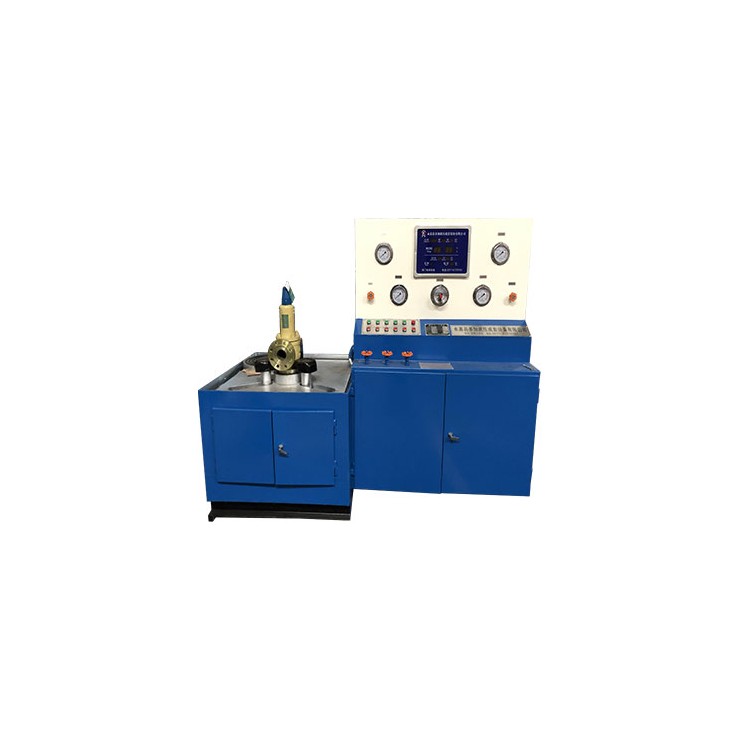
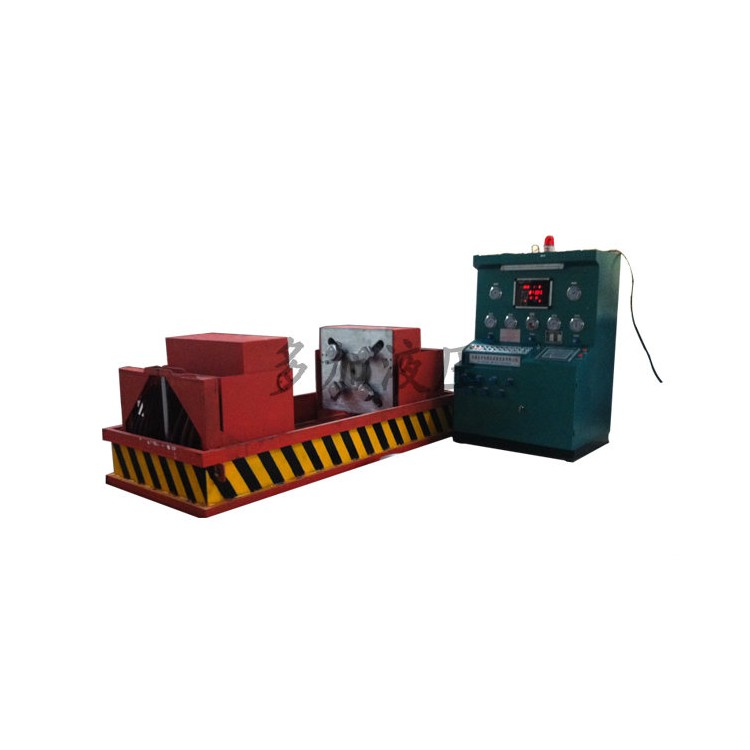
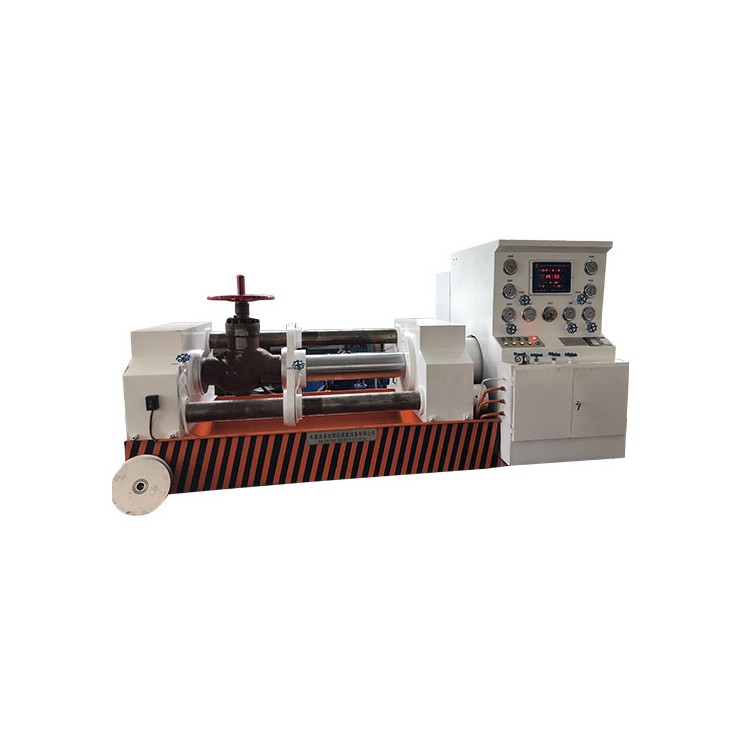
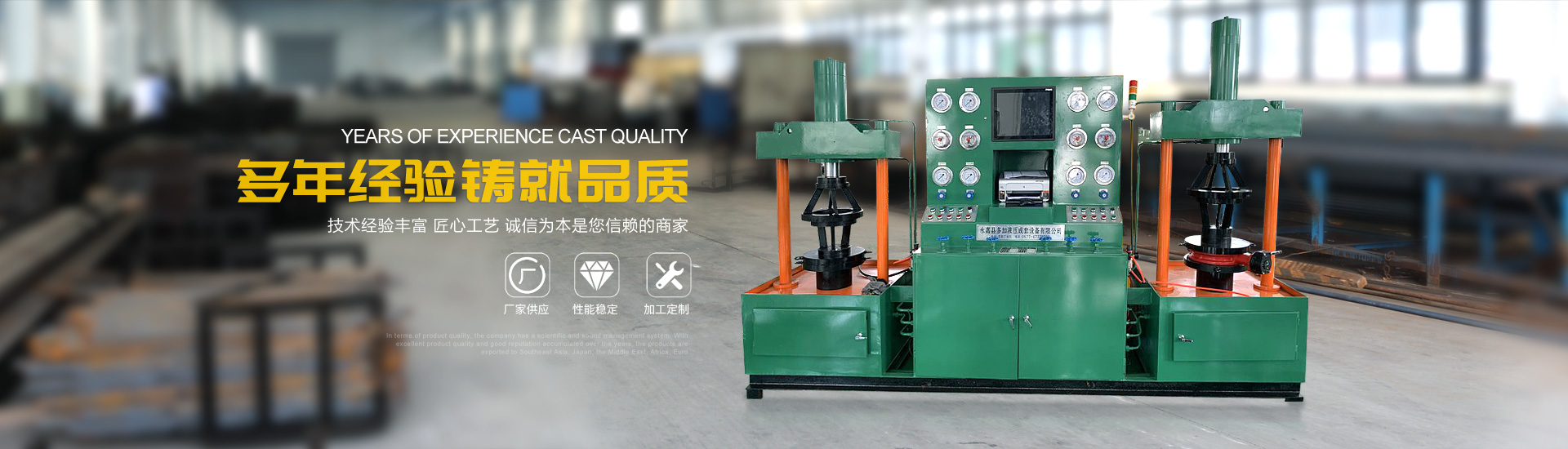
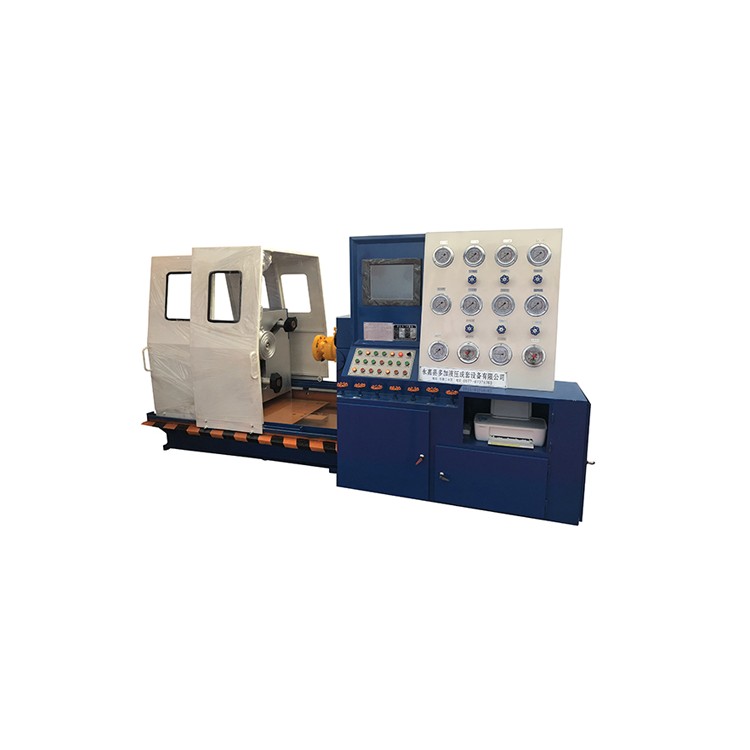
DYFJ-A Type Hydraulic Valve Test Bench
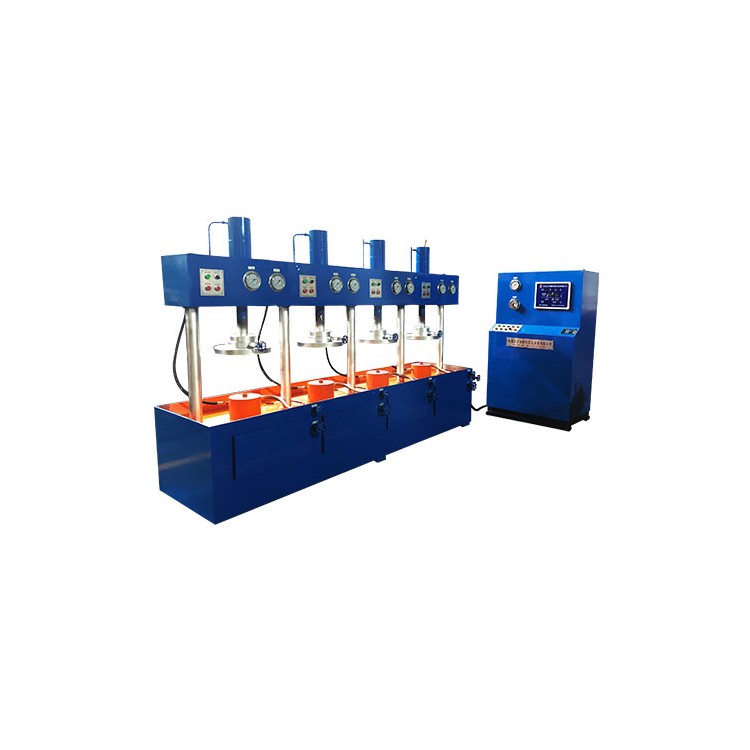
DYFJ-B Type Combination Valve Test Bench
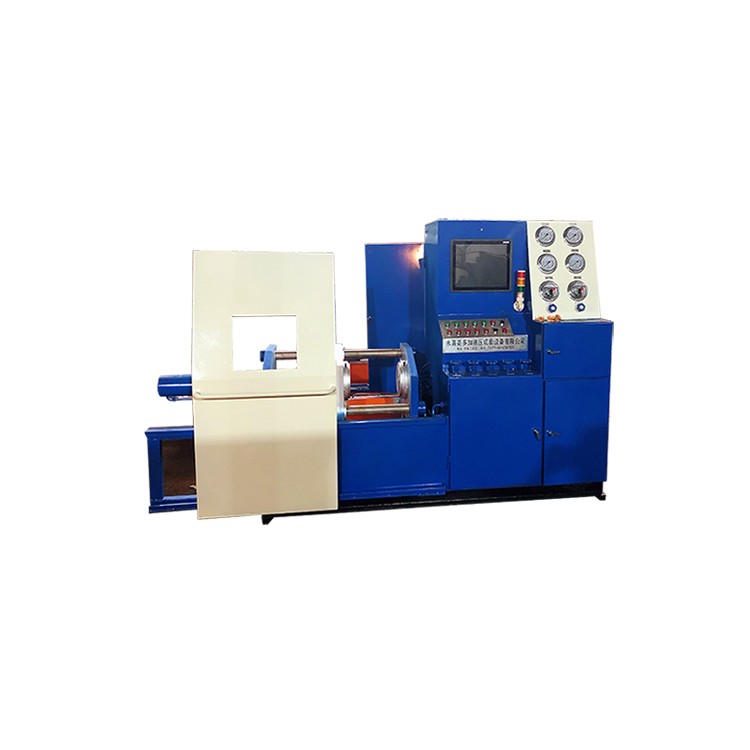
DYFJ-C Type Pressure Vessel Valve Test Bench
DYFJ-E Type Top-Pressed Valve Test Bench
DYFJ-F Type Top-Press Valve Test Bench
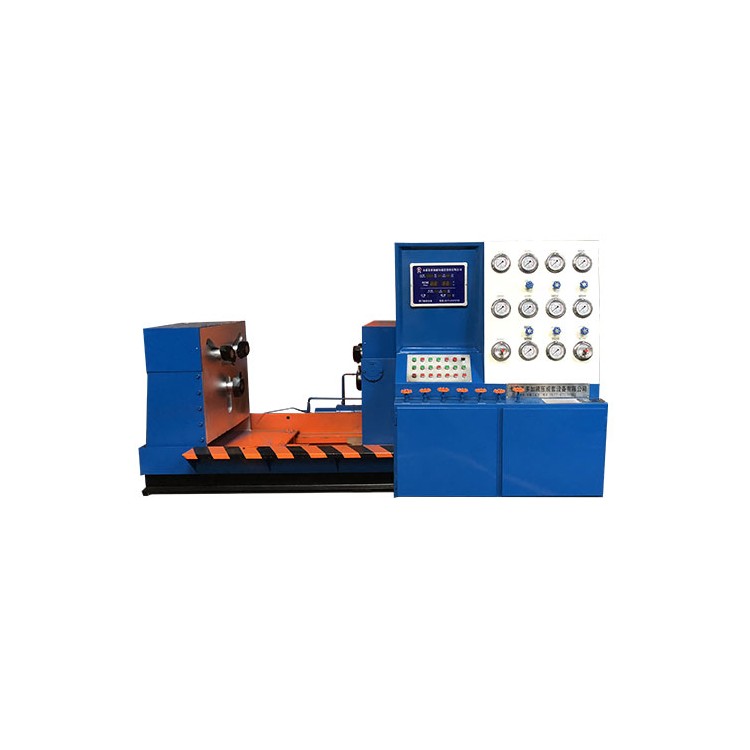
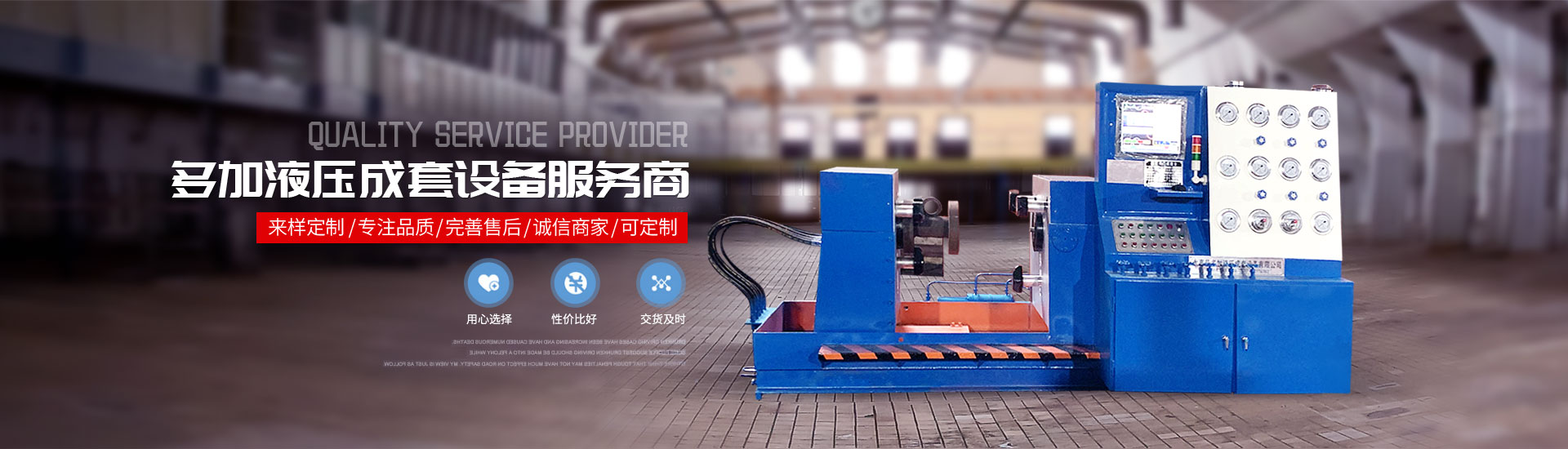
DYFJ-H Type Hydraulic Butterfly Valve Test Bench
DYFJ-Q Safety Valve Test Bench
DYFJ-ZN Intelligent Valve Test Bench
DYFJ-CE Mini Valve Test Bench


详情描述
This system is based on the Windows 7 operating system, integrated with configuration software and PLCs to collect and process data during the testing process, and save it securely. Data is non-modifiable and non-deletable, ensuring its persuasiveness. Test data is automatically saved on the computer and can be easily retrieved or printed at any time using test number or test time as references. Below, we will specifically introduce the operational methods of the system.
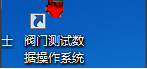
Double-click the icon after the computer boots up normally.
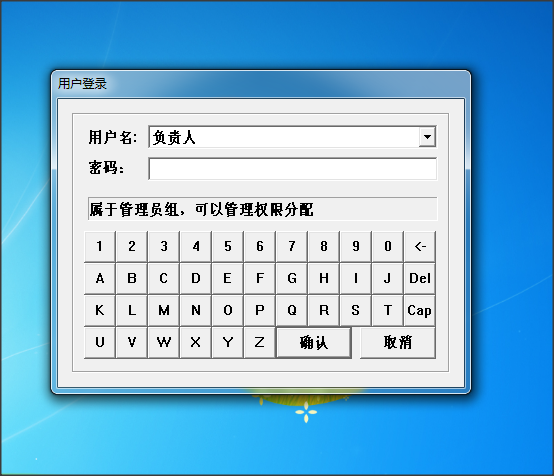
A password input dialog will pop up. Enter the password 935488 and confirm; the data collection software will then enter the running state.

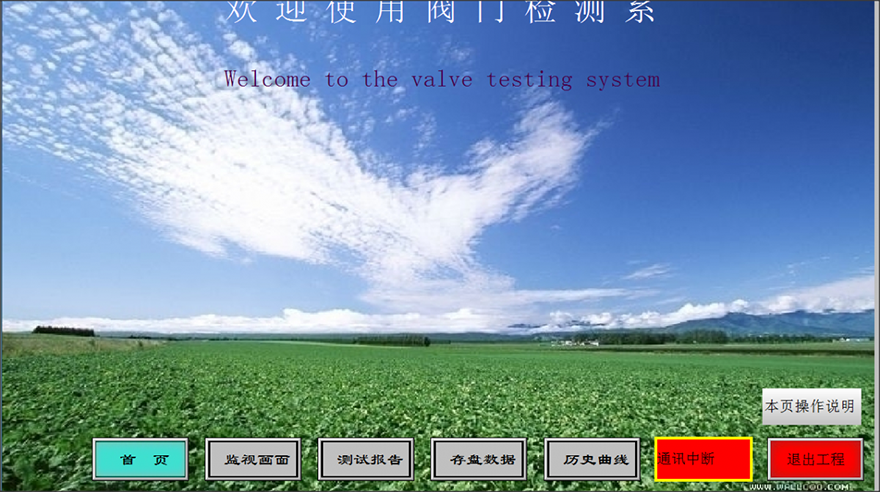
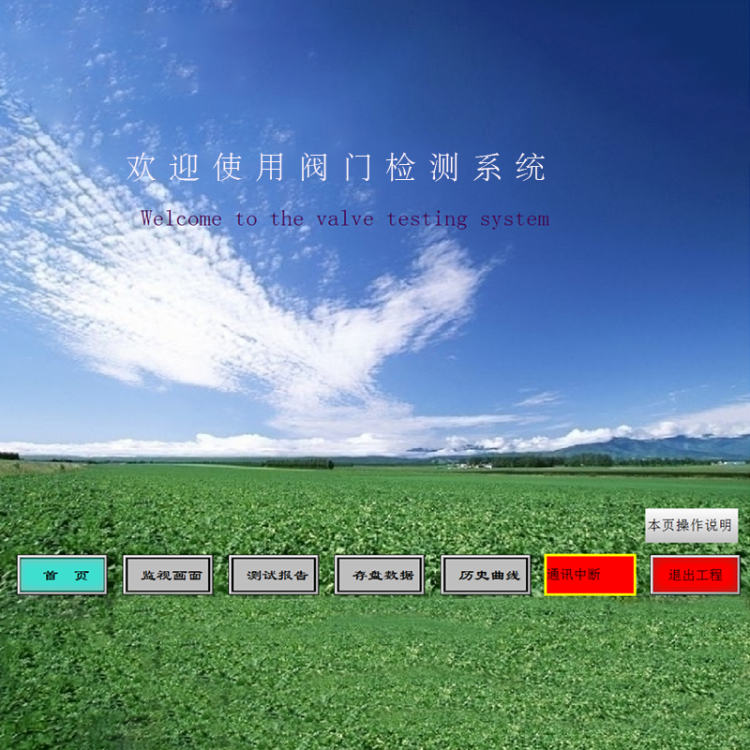
2. First, you'll enter the homepage window, where the software includes operation instructions that can be viewed in conjunction with specific actions.

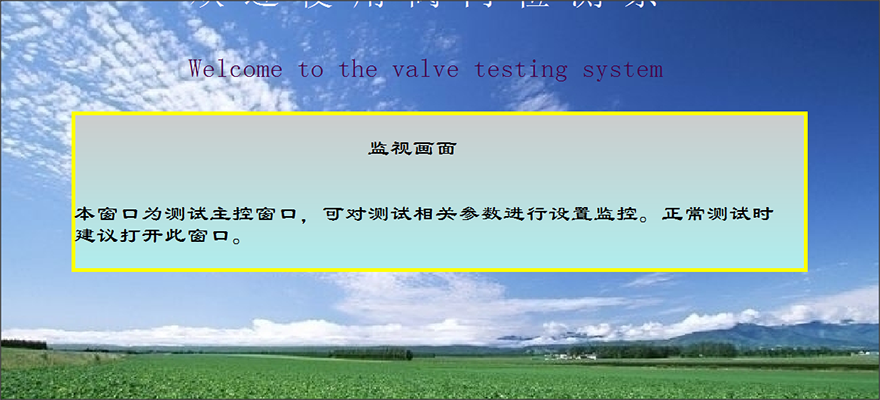
Click on the operation instructions on this page.

Add a blue border to the button, and clicking any button will pop up the function setting instructions for that button.

Click other buttons, the previous instruction will automatically exit. Click "Exit," and you can leave the view instruction status. At this point, you can switch windows and operate normally through the buttons. Let's enter the monitoring screen.
3. Pre-test preparation, parameter settings.

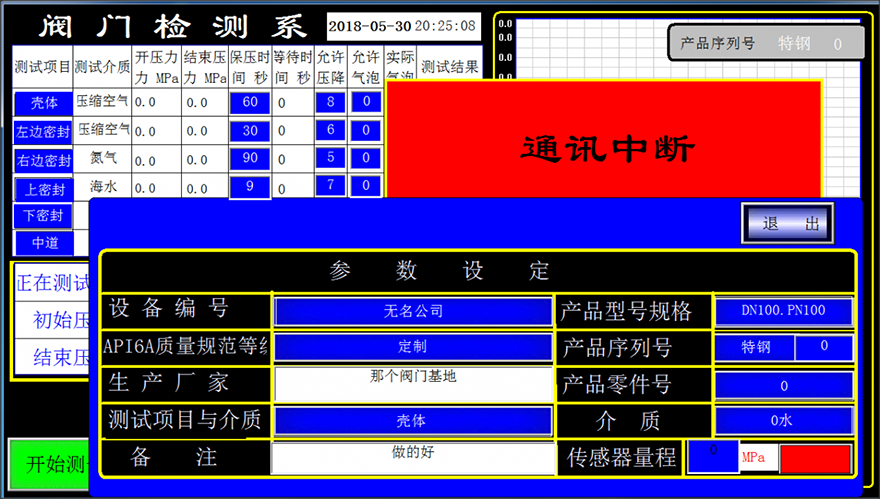
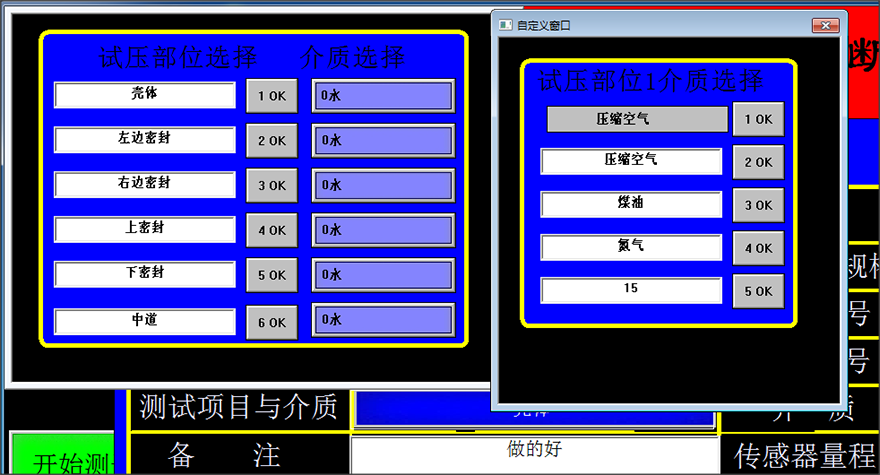
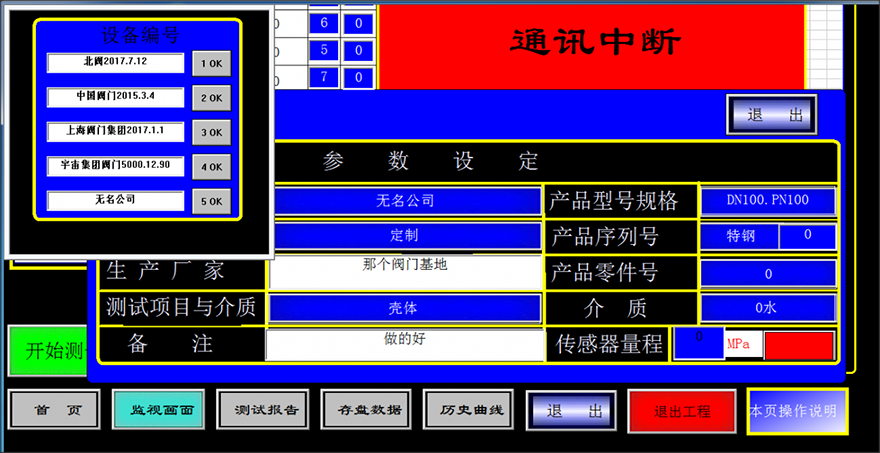
Upon entering the monitoring window, a parameter setting prompt will appear. We have pre-set some commonly used parameters for direct access in the future.
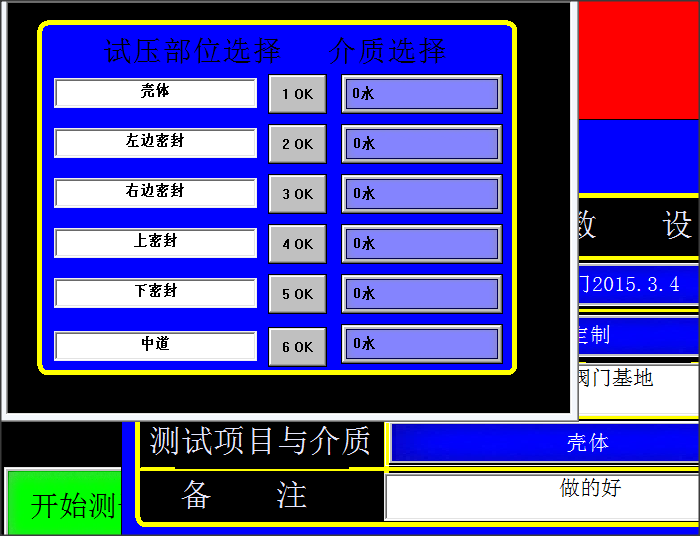
The blue section allows you to click into pre-set 5 groups, which can be accessed at any time. The white section can be directly typed into, considering this section is not expected to be modified frequently.

Be mindful that our bubble monitoring defaults to the first option. Also note that the icons differ.

Before initiating the test, we can zero-calibrate the sensor to minimize measurement errors, select an appropriate range sensor based on the measurement requirements, and calibrate the sensor range.
Not calibrated, a prompt will appear. Once the relevant parameter settings are completed, you can proceed to the normal data collection testing process.
Some critical parameters are not set correctly; corresponding prompts will appear. Please check them during use.

4. Data Testing and Collection

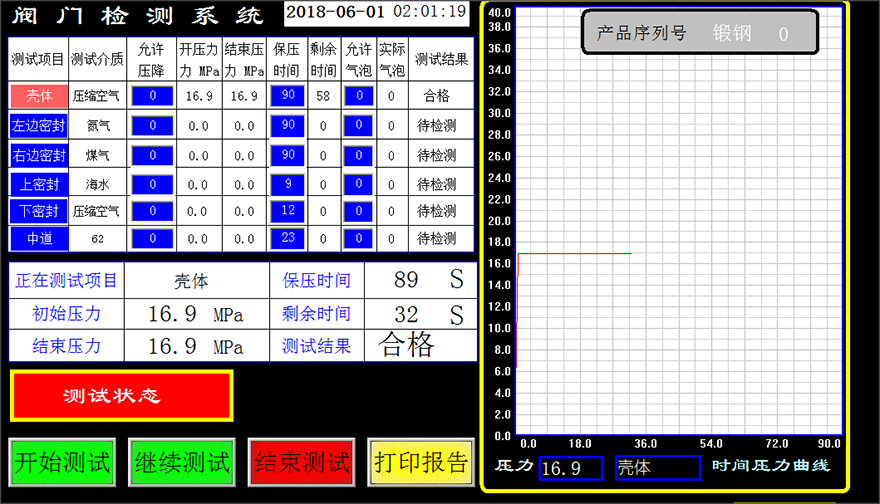
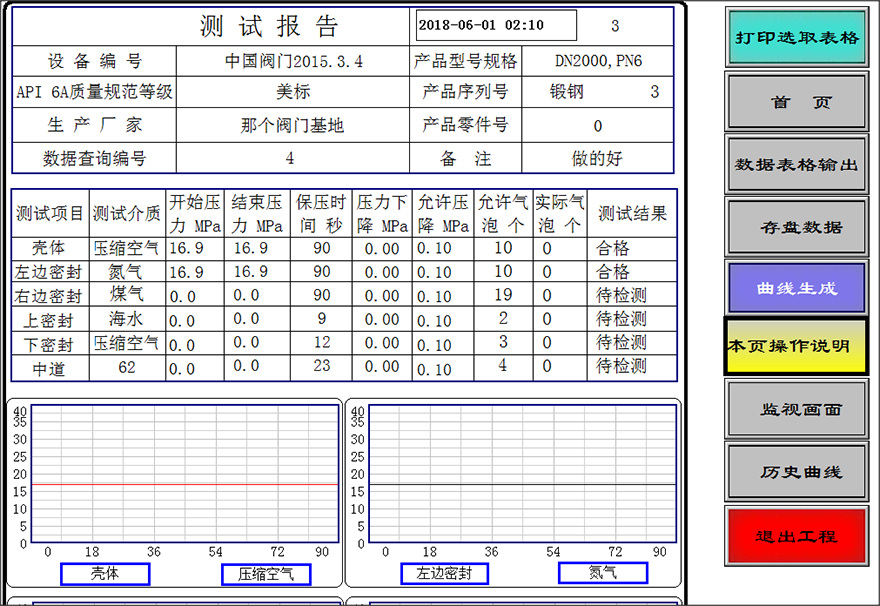
First, click the water and gas switch, select the corresponding water pressure or air pressure, click to start testing, then select the test items, click the required test items with the mouse. The corresponding icon will turn red, indicating it has been selected. Set the corresponding parameters, allow the pressure drop value, and the holding time. The blue box in the image above is where the settings are needed. Click "Continue Testing," the pump will automatically increase pressure, and when it reaches the set pressure, it will automatically stop and hold the pressure. A pressure curve will appear in the right box; a straight line indicates no pressure drop, while a stepped decline shows where there is a leak.
During the testing process, if an anomaly is detected and the test needs to be terminated, click "End Test" to interrupt the testing of the valve. If a different part of the valve needs to be replaced, click "Continue Testing." Please note, do not click "End Test" or "Print Report," as this will result in the test data for the same valve not being saved in the corresponding box for that valve. For specific instructions, refer to the operation guide included in the software.
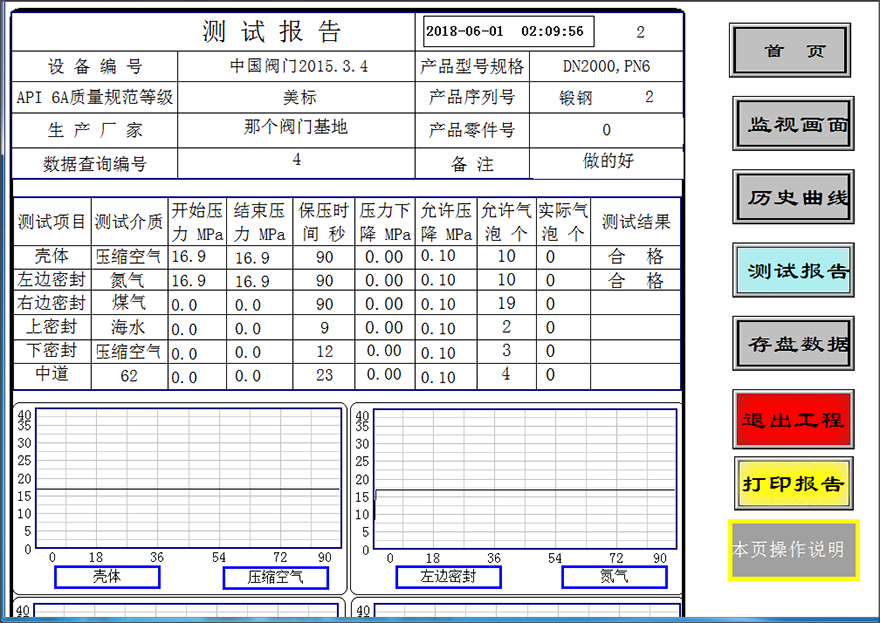
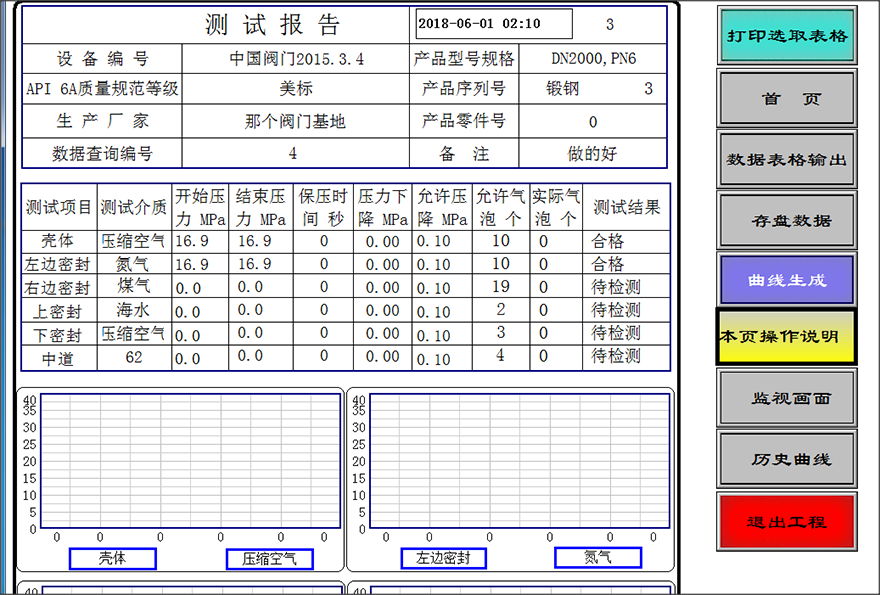
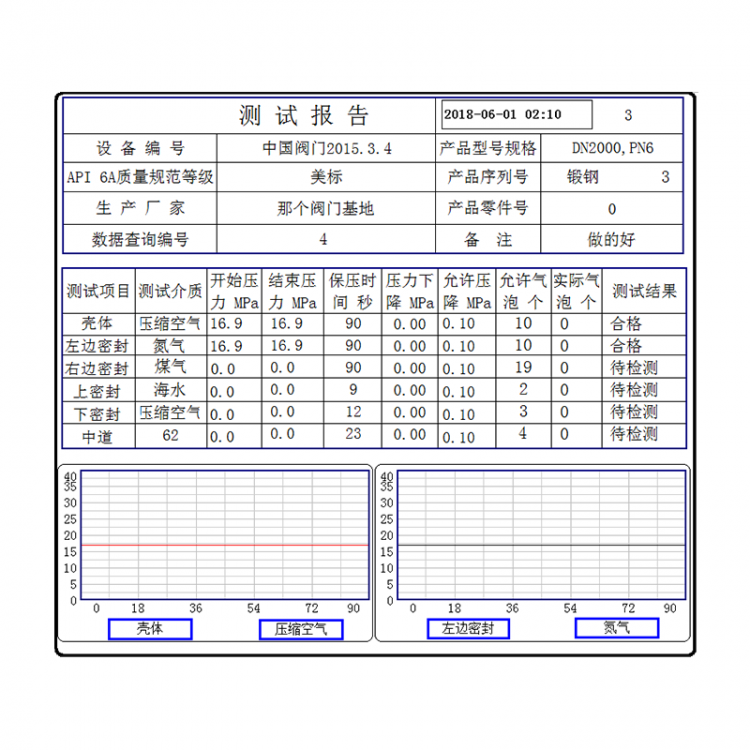
Table printing, after the test is completed, click "Table Print" and the printer will automatically print out the test data. Before printing, you can click on the test report to view the printout. After printing, the relevant data will also be saved into the system.

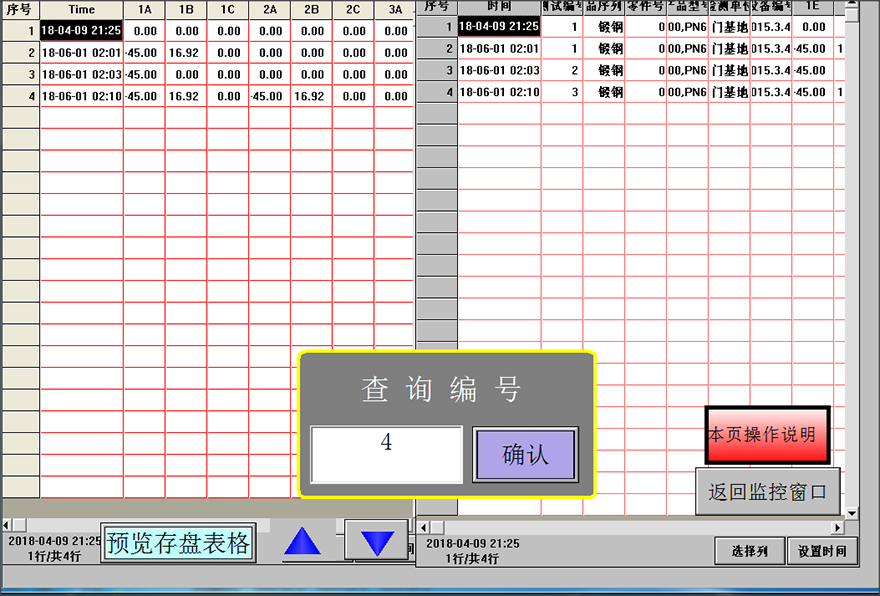
6. To retrieve stored data, when you need to locate stored data, access the stored data window and search using the query number on the test report or the specific test time. Extract and generate a table from the stored data.

After data extraction, click the preview and save table, the extracted data can be seen in the table.

If a pressure curve during testing is required, click "Curve Production," and corresponding curves can be generated based on the saved data at that time.

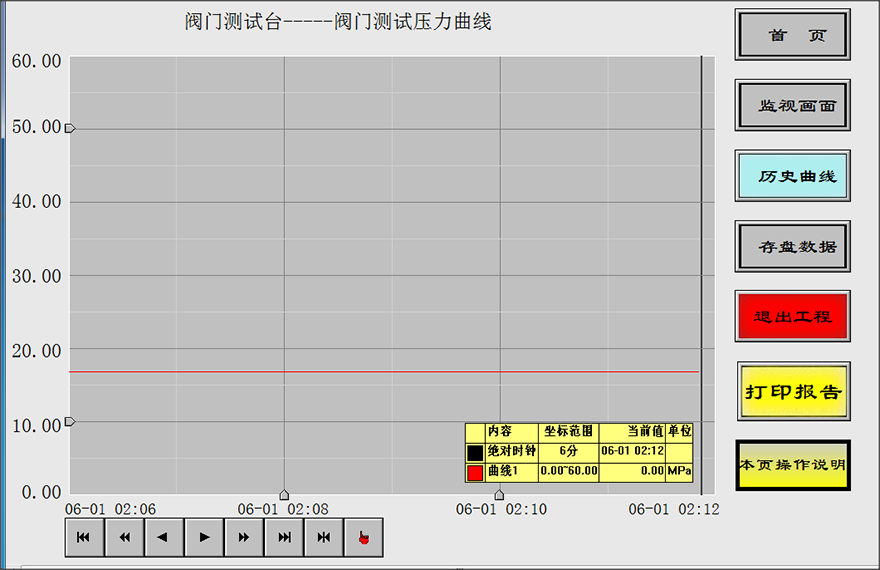
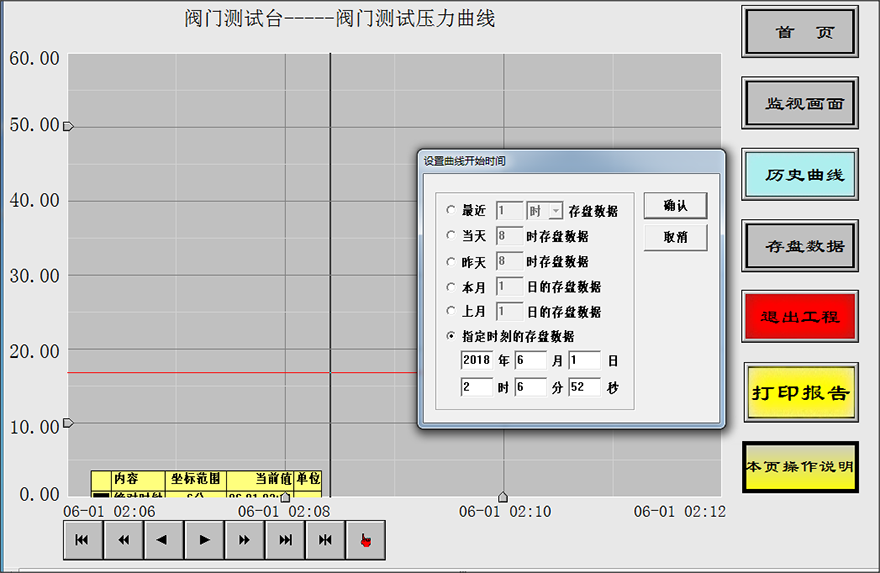
7. Historical Curve Lookup: Real-time curves from past tests can also be viewed through the Historical Curve dialog box.

Click the red icon below to accurately search for related pressure-time curves within a specific time frame by date.

If you have any confusion during the software usage, refer to the in-software operation instructions as much as possible.